Behind the scenes they are not of the same type as an Option Set (Picklist). They are of type Virtual.
Showing posts with label Microsoft Dynamics CRM. Show all posts
Showing posts with label Microsoft Dynamics CRM. Show all posts
Thursday, 29 March 2018
Dynamics 365 Multi Select Option Set is a Virtual Field
One of the new data type introduced in Dynamics 365 V9.0 is MultiSelect Option Sets.


Thursday, 1 March 2018
How to check for Opportunity Business Process Stage Changes in a Dynamics 365 Version 9 Workflow
In the new Dynamics 365 there are many Business Process changes.
The best way to achieve this is through a Synchronous workflow, on Opportunity, which checks
There are times when you need to check for a Business Process Stage change in Opportunity out-of-the box entity. On the change of a Business Process Stage, you might need to run create/update a record.
The best way to achieve this is through a Synchronous workflow, on Opportunity, which checks
- Either the "Stage Category" field value for the corresponding "Stage Id (Process Stage)" entity
- Or "Pipeline Phase" field value within Opportunity
Create a new Business Process on Opportunity. This Business Process will have 4 stages "Apply", "Estimation", "Documentation", "Approval".
 |
| Opportunity Business Process |
 |
| Opportunity Stages |
Let's say you need to execute certain steps for every business process stage. To perform this either create one Synchronous workflow with four check conditions or have four Synchronous workflows with one check condition each. Synchronous workflow below, on Opportunity, checks for stage "Approval".
 |
| Synchronous workflow with Approval Stage Check |
Also, in the Synchronous workflow select the field "Pipeline Phase on change of which the workflow will be executed.
 |
| Select "Pipeline Phase" field from "Records Fields Change" |
Wednesday, 28 February 2018
Dynamics 365 Data Types and Equivalent SQL Server Data Types
Dynamics 365 Online makes it very difficult to analyze the Microsoft SQL data type equivalents for Dynamics 365 data types.
Now a days almost all Dynamics 365 projects involve some form of data Migration from third party applications. The most common way is to create a staging area on Microsoft SQL Server and create tables resembling the entities and fields in Dynamics 365. If Dynamics 365 is on cloud then you have be careful when creating staging tables as the data types should match the data types of CRM attributes.
- CRM Two-Option (Boolean) - In SQL Server the data type is [bit]
- CRM Currency (Simple or Rollup) (for Precision = 4) - In SQL Server the data type is [decimal](38, 4)
- CRM Date and Time (Date only) - In SQL Server the data type is [datetime]
- CRM Date and Time (Date and Time) - In SQL Server the data type is [datetime]
- CRM Lookup - In SQL Server the data type is [uniqueidentifier]
- CRM Unique Identifier - In SQL Server the data type is [uniqueidentifier]
- CRM Multiple Lines of Text - In SQL Server the data type is [nvarchar](max)
- CRM String (single line of text for maximum length of 160) - In SQL Server the data type is [nvarchar](160)
- CRM Picklist (option set) - In SQL Server the data type is [int]
- CRM Status - In SQL Server the data type is [int]
- CRM Status Reason - In SQL Server the data type is [int]
- CRM Whole Number - In SQL Server the data type is [int]
- CRM Decimal Number (for Precision = 2 and Precision = 10) - In SQL Server the data type is [decimal](38, 2) or [decimal](38, 10)
- CRM Floating Point Number (for Precision = 5) - In SQL Server the data type is [decimal](38, 5)
This will help in creating SQL tables resembling the entity field data types in CRM.
Wednesday, 10 January 2018
What's being Deprecated in Dynamics 365 Version 9
Microsoft is deprecating certain CRM features. Meaning Microsoft will be removing these features completely from future releases of Dynamics 365.
As of now these features will continue to work. By announcing these deprecated features, Microsoft is providing enough notice for all of us to either remove or replace them.
As of now these features will continue to work. By announcing these deprecated features, Microsoft is providing enough notice for all of us to either remove or replace them.
- Dialogs are deprecated
Dialogs are now being deprecated and can be replaced by using Business Process Flows or the new Mobile Task Flows. Dialogs were introduced by Microsoft starting Dynamics CRM version 2011.
- Standard SLAs for Customer Service are deprecated
Service level agreements (SLAs) are a formalized method to help organizations meet service levels when they provide customer service and support. They are being replaced by Enhanced SLAs.
- Mail Merge is deprecated
Mail merge had many limitations and was cumbersome to use. Instead the new Word Templates functionality can be used.
- Outlook Client is deprecated
Outlook Client should be replaced by the new Dynamics 365 App for Outlook.
- Relationship Roles are deprecated
Relationship roles should be replaced by Connection Roles.
- Silverlight (XAP) web resource is deprecated
HTML 5 should be used instead of Silverlight in web resources.
- Email Router is deprecated
Email router should be replaced with server-side synchronization feature. This feature is easy to use and configure.
- Service Scheduling using the Service Activity is deprecated
Service Scheduling using the Service Activity should be replaced by Unified Resource Scheduling included with Dynamics 365 for Field Service.
- Parature is deprecated
Parature can be replaced by Knowledge Management feature.
- Announcements are deprecated
Announcements never really provided any value within CRM and will be deprecated.
- Some of the Client APIs are deprecated
Some of the Client APIs are deprecated in the current release to reorganize the Xrm client API object model to better align with the need of using the same client scripts without having to change them based on the context or the client (web client or the new Unified Interface) where they run.
- Contracts, Contract Line Items and Contract Templates are deprecated
This has been replaced by Entitlements in Dynamics 365 for Customer service.
Monday, 11 December 2017
Use of ILSpy in Dynamics 365
If you are part of any Dynamics migration project, you sometime can face this typical issue.
Your customer's previous vendor provided the source code without supplying all the required Proprietary DLLs. This applies to Visual Studio solutions for plugins or custom workflow activities. When you open these solutions, they will not compile and give errors about missing references.
Your customer's previous vendor provided the source code without supplying all the required Proprietary DLLs. This applies to Visual Studio solutions for plugins or custom workflow activities. When you open these solutions, they will not compile and give errors about missing references.
In these cases there is a workaround "ILSpy". ILSpy is an open -source .NET assembly browser and decompiler. This can be used to view source code and namespaces for a Dynamics CRM plugin/custom workflow DLLs.
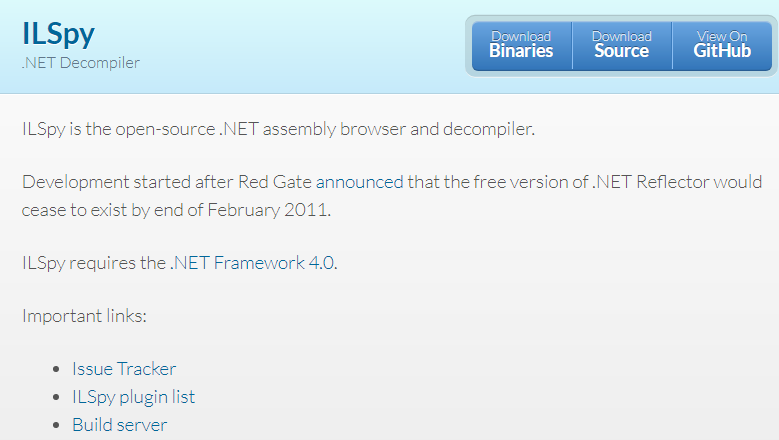 |
| Download ILSpy |
- Go to http://ilspy.net and download the binaries. Unzip it in any location on your computer. You can use the ILSpy to de-compile a plugin solution and browse through all namespaces.
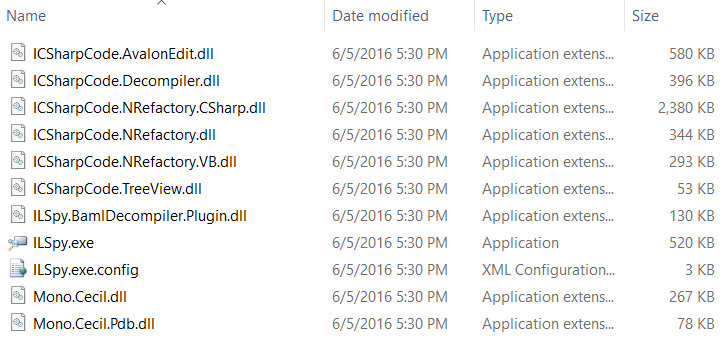 |
| Unzip ILSpy Binaries |
- Create a blank solution in source CRM. Include Plugin or workflow assembly. Do not include any sdk message processing steps.
 |
| Create Solution with Plugin Assembly |
- Export the solution and save it on your computer. Unzip the solution.
 |
| Export Solution |
- Go to folder which has the plugin. Open ILSpy.exe. Drag and drop the plugin to ILSpy.
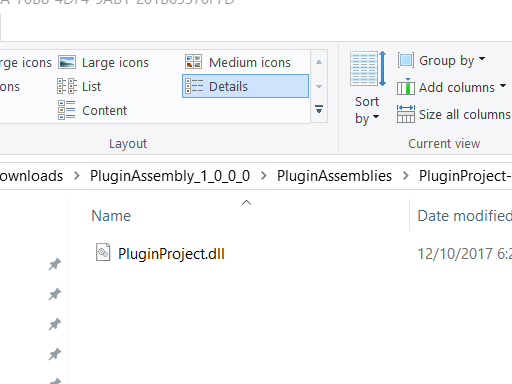 |
| Open Folder with Plugin Assembly |
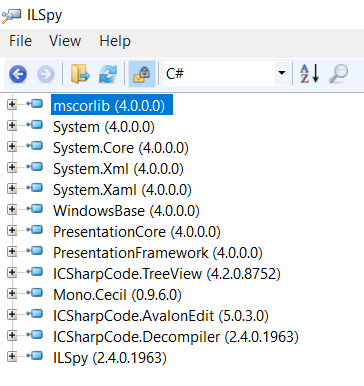 |
| Open ILSpy.exe |
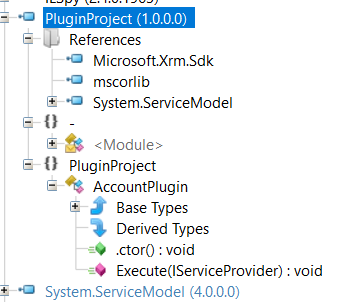 |
| Drag and Drop the Plugin Assembly to ILSpy |
Thursday, 7 December 2017
Who are Data Scientists and What they Do
Now-a-days the buzz word is Data Analytics. Customers are savvy and want to know how we can help analyze their data.
I feel Data Analytics should be part of every medium to large Dynamics 365 project. This is first of many blogs I will start writing for Data Analytics.
Good news is that Microsoft is already leading the way in Data Analytics through extreme investments in Dynamics 365, Windows, Azure, Machine Learning, SQL Server and IoT.
Data scientists are a special breed who work on data and have the art of making some sense out of it. Having said that it is not as simple as picking customer's SQL Server and start writing TSQL queries.
Data scientists should have the following
- Constant learning of current state of any project or business
Customer's data is the representation of its business in the form of numbers, text, dates and images.
- Fully understand the expectations and deliverable
Planning and the execution both depend on the end goal. A data scientist should be clear of what is expected so that the analysis and transformation can be performed accordingly.
- Knowledge of methodologies and tools
A data scientist should be aware of various methodologies and tools available at his/her disposal. For example, Microsoft has many tools for data analysis and they work with all kinds of data.
- Curiosity, Persistent, Patient and Focused
A data scientist sometimes need to churn Terabyte or Petabyte or Exabyte of data. Therefore they need to have constant curiosity and be persistent, patient & focused to explore, visualize, slice and dice data.
- Technical Savvy
Data scientists should know how to work with raw data. They should be able to transform it to an easy format & visualization so that correct analysis can be made and timely decisions can be reached. Data scientists should be good in math and statistics. Statistics is a branch of mathematics dealing with the collection, analysis, interpretation, presentation, and organization of data.
What does a Data Scientist Do?
- Data scientists spend most of the time preparing data
Data scientists need to clean, prepare and process raw data so that it can be analyzed.
- Run software programs against data
Data scientists use various software programs and languages to analyze data. For example SQL query language, R, Python, Hive, Hadoop, Microsoft R Server, Power BI, Excel, etc.
- Prepare Reports and Visualizations
Data scientists produce reports, charts and tables for easy understanding.
Tuesday, 9 August 2016
Dynamics CRM 2016 Service Pack 1 (Spring Release OR Spring Wave) - New Features and Updates
- Learning Path - a new guided user experience that is tailored for a role. For example, if you are a salesperson.
- Collaboration gets better with Office 365 Groups enhancements (CRM Online).
- Add email signatures to your web client email.
- Display multi-entity search results as a single list (CRM Online).
- Project service automation capabilities for Microsoft Dynamics CRM.
- Manage your field service workforce (CRM Online).
- Self-service portals for an external non-CRM audience (CRM Online).
- Create SLAs for any custom entity and other system entities.
- Microsoft introduced the interactive service hub in CRM 2016. Interactive service hub dashboards and forms help you prioritize your workloads and solve cases faster. In this release, we’ve enhanced the interactive service hub to support more customer service scenarios.
- Rich mobile offline experience (CRM Online).
- Enhanced Power BI integration. The ability to embed Power BI tiles directly into CRM user dashboards.
- Feedback and ratings on entities.
- Preview feature: CRM recommends products by using Azure Machine Learning. Product recommendations is offered as a preview feature for CRM Online customers only. A preview feature is a feature that is not complete, but is made available before it’s officially released so customers can get early access and provide feedback.
- Preview feature: CRM suggests knowledge base articles by using Azure Machine Learning. You want your customer service reps to quickly resolve cases with high customer satisfaction. Using the Azure Machine Learning Text Analytics service with CRM Online, you can set up service case analysis to automatically provide your support staff with more relevant solutions from the knowledge base. They spend less time searching for answers and more time providing the right response.
- Unified Service Desk enhancements.
- Mobile management enhancements. Dynamics CRM mobile applications for iOS and Android can now be managed by Intune Mobile Application Management (MAM) without enrolling the device. This protects company data in Dynamics CRM without requiring IT to enroll and deeply manage the user's entire device. This is particularly useful for bring-your-own-device (BYOD) scenarios where end users don’t want to or can’t enroll their devices for IT management.
- Preview feature: Organization Insights Dashboard shows system usage stats. Use the new Organization Insights Dashboard to get a quick overview of key areas (such as activity and usage) for your CRM Online instance. See views like the number of active users and form load times.
- New datacenter in India (CRM Online).
- Customer field for any entity. Previously, several out-of-the-box entities in Dynamics CRM, such as the Case, Lead, and Opportunity, entities contained a field that represented a customer (account or contact). With this release, you'll be able to add the Customer field to any system or custom entity to track the customer information you need.
- CRM App for Outlook (lightweight app). Microsoft Dynamics CRM App for Outlook is a lightweight app you can use to view Microsoft Dynamics CRM information and track email from within Outlook. The CRM data appears right in your Outlook Inbox.
Monday, 18 March 2013
Microsoft Dynamics CRM 2011 and Microsoft Dynamics CRM Online - Image (PNG, JPG, GIF, ICO) Web Resources
Web resources are a great step forward and were introduced in Microsoft Dynamics CRM version 2011.
Web resources are a great way to act as a container. Web resource can store a piece of JScript code, image, etc.
Web resources are virtual files which are always stored in the Dynamics CRM 2011 database. This is beneficial as we don't have to worry about the physical files and their locations.
Web resources have a unique path and can be accessed through that URL. This is beneficial as we can use the URL in our code.
There are the following kinds of web resources:
- JScript
- XML
- XSL
- Image (types are ICO, PNG, JPG, GIF)
- HTML
- CSS
- Data
- Silverlight
The 3 most widely used types are JScript, HTML and Image. Read my blog for more information on Script (JScript) Web Resources.
In this blog I will show how to create and use an image web resource.
Image web resources are the container for the images in ICO, PNG, JPG or GIF format. Image web resources can be used for:
- Custom Entity Icons
- Display images on the Entity Forms
- Icons for Custom Ribbon Buttons
- Icons for Site Map
In this blog I will create an Image web resource to store a JPG image. I will include this image on an entity form.
1) I have an entity called "Movies". I have few movie records.
 |
| "Movies" Entity and Records |
2) In the movie entity record, I want to place an image on top of the form. This image will be the same for every movie entity record. Below I have shown the area where I would be displaying the image.
 |
| Movie Record "Pirates of the Caribbean: On Stranger Tides" |
3) I have an image which I would like to display on every form.
 |
| Image to be Displayed on Every Movie Form |
4) I will create a web resource. I will go to my "Movies" solution.
 |
| "Movies" Solution |
5) I will go to the "Web Resources" component inside the solution.
 |
| "Web Resources" component inside the Solution "Movies" |
6) I will create a new web resource called "Movies Header Image". I have selected the "Type" as "JPG format". This means this web resource is of type image and format is JPG. Click "Save".
 |
| Movies Header Image Web Resource |
7) The web resource is created. There is a unique URL created for this web resource. This means the image can be accessed through this web resource URL.
By creating an image web resource, we are making sure that this image is available to Dynamics CRM 2011 for use.
The URL created here is:
http://crm2011:5555/AshishMahajan/WebResources/new_Movies.HeaderImage.
8) Publish this web resource. We need to publish the web resource to make it available. After publishing I can start using the web resource in my "Movies" entity form.
By creating an image web resource, we are making sure that this image is available to Dynamics CRM 2011 for use.
The URL created here is:
http://crm2011:5555/AshishMahajan/WebResources/new_Movies.HeaderImage.
 |
| Movies Header Image Web Resource Created |
 |
| Publish Web Resource |
 |
| Movie Entity in the Solution |
 |
| Open the Main Information Form for the "Movies" Entity |
 |
| Insert Web Resource |
 |
| Web Resource Properties |
 |
| Web Resource Control Created |
Go to "Home" tab. Click "Save and Close".
 |
| Drag the Web Resource Control to the Top of Movie Name Field |
 |
| Publish the Movie Entity |
 |
| Movie - Pirates of the Caribbean On Stranger Tides |
 |
| Movie - Skyfall |
 |
| Movie - The World Is Not Enough |
I hope this blog about 'Microsoft Dynamics CRM 2011 and Microsoft Dynamics CRM Online - Image (PNG, JPG, GIF, ICO) Web Resources' was informative. Please feel free to leave your comments.
Sunday, 17 March 2013
Microsoft Dynamics CRM 2011 and Microsoft Dynamics CRM Online - Supported and Un-Supported Code, Customizations and Extensions
Microsoft Dynamics CRM 2011 is a robust application. It is a highly customizable xRM platform which can be used as a non-CRM application.
Dynamics CRM 2011 can be customised and extended in many ways:
- Customizing Site Map
- Changing Icons
- Customizing Ribbon Buttons
- JScript Web Resources
- Other Web Resources (HTML, CSS, XML, Image, Silverlight, etc.)
- Plugins
- Workflows
- Dialogs
- Custom Workflow Activities
- SSRS Reports
- Integration with other applications through tools like Scribe, etc.
When customising and extending Dynamics CRM 2011, always write supported code. Supported code is the code which falls between the boundaries of Dynamics CRM platform. Meaning the code is well integrated into the Dynamics CRM architecture and is easily upgradeable.
On the other hand unsupported code or unsupported customisations fall outside of what should be done in Microsoft Dynamics CRM 2011. It is not that the unsupported code will not work or not produce the desired results. The unsupported code if written correctly will do the job, but is not supported by Microsoft. In simple words Microsoft takes no responsibility for your unsupported code.
The problems with unsupported code or unsupported customizations are:
- Future service updates or rollups for Dynamics CRM 2011 can reverse your changes. In worst case scenario the installation of the service update or rollup will fail.
For example, if you change manually any of the core Dynamics CRM files to change the look and feel of CRM. Next time when you try to install the service update or rollup, the installation might overwrite those core files. This will remove your changes and you will have to make those changes again.
- When you try to upgrade to the next version of Microsoft Dynamics CRM, this could lead to many issues. Upgrade from current to future versions will be seamless if your CRM 2011 has all the supported customisations. In case of unsupported customisations, there could be errors as that piece of code could no longer be executed in CRM's programming model.
- If you are a large IT consultancy firm and are involved with your customer for their critical enterprise level Dynamics CRM project. This project involves more than a year of development. Before go-live your customer calls another company for final auditing of this project. If those company's consultants pin-point that there are unsupported code and customisations, this could be a major source of embarrassment for your organisation.
- There is no Microsoft support for unsupported code and unsupported customisations in Dynamics CRM.
Few Examples of Unsupported Customisations
- Document Object Model (DOM): Referencing Document Object Model (DOM) objects in HTML in JScript is not supported. Always use the new CRM 2011 XRM Page programming model. The Document Object Model (DOM) is a cross-platform and language-independent convention for representing and interacting with objects in HTML, XHTML and XML documents.
You can read more about JScript development and the cheat sheet in one of my blog.
- SSRS Reports: SSRS reports in Dynamics CRM 2011 should always be either Fetch XML based or filtered views based. SSRS reports based on SQL which accesses non-filtered views are unsupported.
In Dynamics CRM database there are always 2 types of views "filtered" and "non-filtered". Non-filtered view is named, based, on the entity's name. For example, "select * from account" will get me all records. "account" here is a view which will combine tables like "AccountExtensionBase", "AccountBase" and other related tables. "account" view is a non-filtered view which never has security inbuilt into its script. On the other hand if I use "select * from FilteredAccount", I will get only the records to which I have access. Use of filtered views is supported over the use of non-filtered views.
- Direct Database Table Modifications: Direct database table modifications, through code, are unsupported. For example, in a plugin if I have code which changes the status of an entity record through a SQL script, this is unsupported. Always use CRM 2011 web services to make changes to any entity fields.
- CRM 2011 SDK: The best reference for always writing supported code is the CRM 2011 SDK.
SDK has articles and examples on how to extend and customise CRM. If it's not there in SDK, then it is likely to be unsupported.
- Ribbon: You can always extend Ribbon XML and customise by adding you own buttons. Ribbon buttons defined for system entities are already there when CRM 2011 is installed. You can hide or disable them. You can also use CRM 2011 Ribbon commands. Reuse of CRM 2011 Ribbon JavaScript functions is unsupported. Reason being these functions can be overwritten during upgrade or get deprecated.
- Database Schema Changes: Physical changes to the CRM 2011 database schema are unsupported. This could lead to severe performance issues or even CRM 2011 being unavailable.
The only supported changes are adding new or updating existing indexes.
- Help Content: Changes to the help content for CRM 2011 application is not supported for on-premises.
- Core CRM Files: Changes to Core CRM files in its installation directory is unsupported.
- CRM 2011 IIS Website: Making changes within the CRM 2011 IIS website like adding another website is unsupported.
I hope this blog about 'Microsoft Dynamics CRM 2011 and Microsoft Dynamics CRM Online - Supported and Un-Supported Code, Customizations and Extensions' was
informative. Please feel free to leave your comments.
Thursday, 14 March 2013
Microsoft Dynamics CRM 2011 and Microsoft Dynamics CRM Online - Get the Form Control ID
Microsoft Dynamics CRM 2011 is a web application. It is setup as a web application in IIS. It can be browsed through the clients such as a web browser or Microsoft Outlook. Previously Dynamics CRM could only be accessed through a single web browser Internet Explorer. The latest release of Microsoft Dynamics CRM called Update Rollup (UR) 12 delivered multi-browser support. The Dynamics CRM 2011 access in Microsoft Outlook is also through Internet Explorer. If you open the records in Microsoft Outlook, they actually open in the Internet Explorer browser window.
In this blog I will show how to get the ID of any Microsoft Dynamics CRM 2011 form controls in Internet Explorer.
There are many occasions where one would need the ID of a control on a Dynamics CRM 2011 form. Like in my case I want to change the images on the form based on the record selected. I have an entity called "Movies". For every movie record there is a "JPG" web resource storing the movie poster image. I want to dynamically display the related image for a movie record.
 |
| "Movie" Entity Records |
Below are the 3 "Movie" records and the dynamically displayed images (related to the movie).
 |
| "Movie" Record Skyfall |
 |
| "Movie" Record Casino Royale |

 |
| "Movie" Record GoldenEye |
The image, on a CRM 2011 form, is displayed as an inserted web resource control.
 |
| "Movies" Entity Form Design Showing the Web Resource Control |
This web resource displays an image by default. The same image will be displayed for all movies. In order to dynamically change this image I need to write a JScript web resource. The JScript code displays the image web resource and is dynamically selected based on the "Movie" record name.
 |
| JScript Code |
As seen above the web resource is selected based on the movie record name. There is an Image Web Resource for every movie and is named after the record name. In Jscript to code the display of the Image Web Resource in the image control, I need the ID of this image control. In the JScript code, above, the ID used is "WebResource_Movie_Images".
I can find the ID of any Microsoft Dynamics CRM 2011 control from the Internet Explorer "F12 Developer Tools". Internet Explorer Developer Tools (formerly known as Internet Explorer Developer Toolbar), is a component of Internet Explorer that aids in design and debugging of web pages.
Open any "Movie" form. Let's say I have opened the "Movies" entity record GoldenEye. Press F12 on the keyboard to open the tools. Or else select the "F12 Developer Tools" option from the Internet Explorer right hand side "Tools" menu.
 |
| Internet Explorer "Tools" Menu |
The Internet Explorer window, below, will now display the "F12 Developer Tools".
 |
| Internet Explorer Window Displaying the F12 Developer Tools |
I want to find out the ID for the image control. Click the arrow button "Select Element By Click".
Select the element (control) on the form whose ID you want. In this case I want the ID of the Image so that I can use that in JScript code. Take the mouse cursor on the image and click once. This will open the HTML for the page on left hand side. On right hand side it displays the CSS for the page. The HTML tag for the image is selected and highlighted in blue.
 |
| Select Element By Click |
 |
| Select The Image Element (Control) |
 |
| Selected Image HTML Tag and The ID |
In this way we can use the Internet Explorer "F12 Developer Tools". Using this tool we can find out the ID of the Dynamics CRM 2011 form controls. These ID can be used in the JScript as I have done above.
A piece of advice: Before using the control and the ID in JScript code, always check whether the code is supported or unsupported. Unsupported code is the one which doesn't conform to the CRM 2011 platform coding principles. If you write unsupported code, there could be problems in installing future service packs or upgrading to the new Dynamics CRM release.
I hope this blog about 'Microsoft Dynamics CRM 2011 and Microsoft Dynamics CRM Online - Get the Form Control ID' was
informative. Please feel free to leave your comments.
Sunday, 24 February 2013
Microsoft Dynamics CRM 2011 and Microsoft Dynamics CRM Online - Benefits of having the JScript Web Resource Code as a separate JS file
When I create a new JScript web resource, there are 2 ways to add code to it.
One way is to upload the JScript file to the web resource. This will embed the "JScript file" code inside the web resource.
Below is the file in Visual Studio and uploaded as part of a web resource.
 | |||
| JS File in Visual Studio 2010 |
 |
| JScript File uploaded as part of a Web Resource |
The other way to create an empty JScript web resource. Later open the JScript web resource and add the code through its text editor.
 |
| Web Resource Text Editor |
 |
| JScript in Web Resource Text Editor |
In existing JScript web resources there are 2 ways of making changes to the code. Either you make changes to
the code in a corresponding file (if it exists) and then copy paste this code back into the web
resource. OR you can open the web resource text editor and make changes.
The
best practice is to have a separate JS file for every JScript web resource. This JS file should contain the same code as its corresponding web resource. The main benefit is that these
files can be version/source controlled.
Microsoft Dynamics CRM is not a version/source control application and hence the code inside the web resources cannot be version/source controlled. It is better to have the JS files and have these files version controlled.
There are many version control software available. My favourite is TFS (team Foundation Server). Team Foundation Server (TFS) is a Microsoft product offering source control, data collection, reporting, and project tracking, and is intended for collaborative software development projects.
If you need to make changes to any web resources, first update the code in the corresponding JS file and then make these same changes inside the web resource. The other way is to make changes in the web resource and test these changes and at the end update the corresponding JS file in the source control.
I
hope this blog about 'Microsoft Dynamics CRM 2011 and Microsoft Dynamics CRM Online - Benefits of having the JScript Web Resource Code as a separate JS file' was informative.
Please feel free to leave your comments.
Microsoft Dynamics CRM 2011 and Microsoft Dynamics CRM Online - Script (JScript) Web Resources
Microsoft Dynamics CRM 2011 has revolutionised the way we write JScripts in the framework.
In this blog I will create a JScript web resource.
This web resource will validate the "Cost of Production (millions)"
and "Revenue (millions)". The JScript will calculate whether the
movie made a loss or profit and will display a message accordingly. This
message will be displayed when a movie record is open.
Steps to create a web resource and bind it to a form.
1) Below is the movie entity record. The movie entity form has 2 fields "Cost of Production (millions)" and "Revenue (millions)". The "Cost of Production" is the cost of making the movie. The "Revenue" is the financial gain from the movie. This gain can be less than or more than the cost and will decide whether the movie has made a profit or a loss.
 |
| "Movie" Entity Record |
2) I will add a web resource. I already have a solution named "Movies" which has all the entities and components around movie entity.
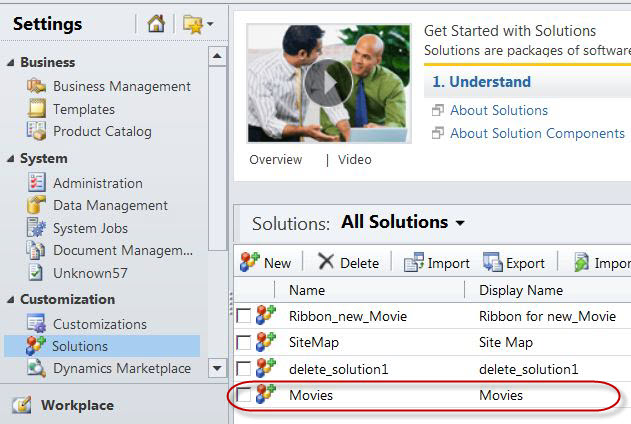 |
| "Movies" Solution |
3) I will open this solution. On left hand side all the component types are displayed for this solution. One of them is "Web Resources". This is where new or existing web resources are added.
 |
| "Movies" Solution |
4) Click on "New" button to create a new web resource. This will open a New Web Resource form.
 |
| New Web Resource Form |
5) Enter the required values. I will name this web resource as "Movies.DefaultForm". The actual JScript code is defined in an external file. When I upload the file to this web resource, it will bind the code to the web resource. In later steps I will display the code in this file.
 |
| New Web Resource Values |
6) Click "Save and Close". Publish this new web resource "Movies DefaultForm". Every time we make any changes to a web resource, it needs to be published.
 |
| Publish the Web Resource |
7) Below is the code inside the uploaded JScript file "Movies.DefaultForm.js". If there are any changes in the code, the best practice is to make changes inside the file and then make the same changes inside the web resource.
The main benefit of doing that is the code can be made part of a source control repository like Team Foundation Server (TFS). The web resources as such cannot be stored inside TFS but the JScript files can.
This function "OnLoad" will be bounded to the "Onload" event of the "Movies" entity form. I have named this function as "Onload" but you can give any name. This function checks the values in the 2 fields "new_costofproduction" and "new_revenue". If the value of "new_costofproduction" is less than value of "new_revenue", then there is a profit, or else there is a loss. If the values of "new_costofproduction" and "new_revenue" are the same, then there is no loss or profit.
This function "OnLoad" will be bounded to the "Onload" event of the "Movies" entity form. I have named this function as "Onload" but you can give any name. This function checks the values in the 2 fields "new_costofproduction" and "new_revenue". If the value of "new_costofproduction" is less than value of "new_revenue", then there is a profit, or else there is a loss. If the values of "new_costofproduction" and "new_revenue" are the same, then there is no loss or profit.
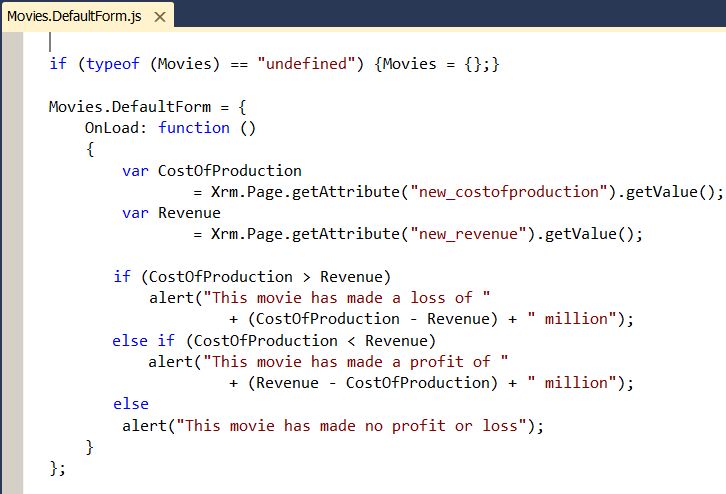 |
| JScript file "Movies.DefaultForm.js" in Visual Studio 2010 |
I will go to the "Movies" entity main form in the already opened solution "Movies".
 |
| "Movies" Entity Main Form |
9) Open the "Movies" entity main form. This will open the form in design mode.
Click on the ribbon button "Form Properties".
 |
| "Movies" Entity Main Form - Ribbon Button "Form Properties" |
10) This will open the form properties window, from where we can edit the form's properties.
 |
| Form Properties Window |
11) First we will bind the JScript web resource itself. In the second step we will bind the actual function to the "Onload" form event. Click the "Add" button under "Manage libraries that will be available in the form". This will open the "Look up" to list all the web resources in the solution. You can select a web resource.
My solution only one web resource "Movies DefaultForm". I will select that. Click "OK".
My solution only one web resource "Movies DefaultForm". I will select that. Click "OK".
 |
| "Look up" Window Listing all the Web Resources in the Solution |
 |
| Web Resource is Added |
13) A JScript web resource contains many functions. So it is important to bind a particular function, which contains code required, to execute on the "OnLoad" event of the form. This code will execute when the "Movies" entity record form will open.
Make sure in Event Handlers, you have "Form" selected for "Control" and "OnLoad" selected for "Event".
Click "Add", to bind the function. This will open a new window where I will enter the function name. You can see this function in the screen shot for the JScript, I have in step number 7, above. The Library has the name of the web resource. We can bind more than one web resources to a form. Click "OK".
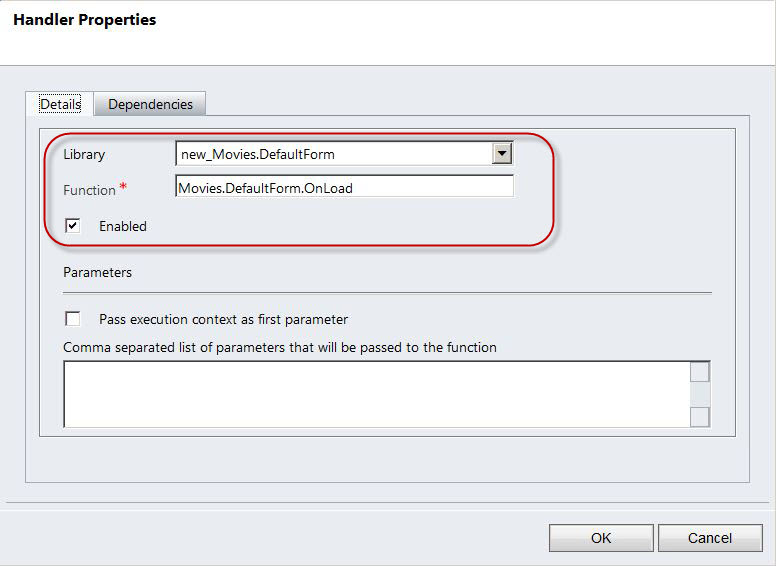 |
| Bind the Web Resource Function |
 |
| Web Resource Function Added |
15) Click on "Save and Close" button. This will save the settings I made and close the "Movies" entity form.
 |
| "Save and Close" the "Movies" Entity Form |
16) I will publish the changes made to the "Movies" entity form. Click "Publish" to publish the changes.
 |
| Publish the Movies Entity Form |
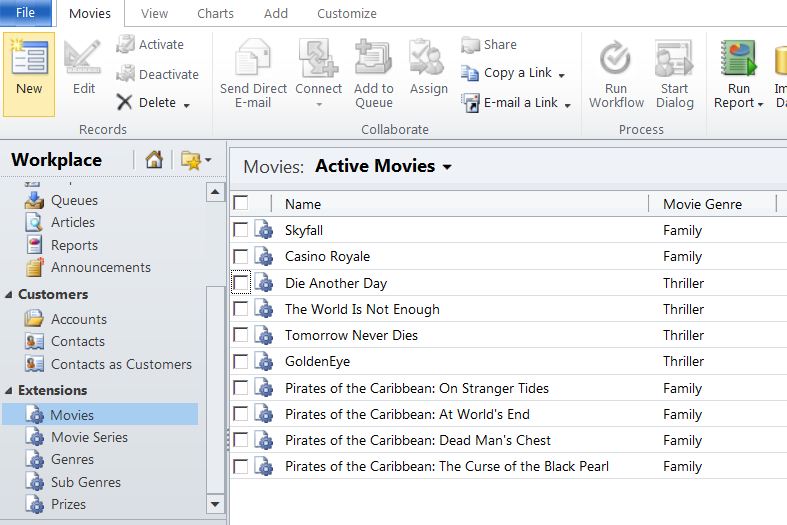 |
| Movies List |
18) Out of the movies in the list, I have 3 movies which I will use to test my JScript web resource code.
The movie "Skyfall" made losses, "Casino Royale" made a profit and "Die Another Day" has made no profit or loss.
The movie "Skyfall" made losses, "Casino Royale" made a profit and "Die Another Day" has made no profit or loss.
Below is the output when I open "Skyfall". As the web resource function is bound to the "OnLoad" event, so the code will execute as soon as the form opens. As you see this movie's cost of production is 200 million and revenue is 190 million. So the loss is of 10 million. As per the JScript (shown above in step number 7), there will be a message displayed with the loss, as seen below.
 |
| Movie made Losses |
Below is the output when I open "Casino Royale". As you see this movie's cost of production is 100 million and
revenue is 200 million. So the profit is of 100 million. As per the
JScript (shown above in step number 7), there will be a message displayed with the profit, as seen below.
 |
| Movie made Profit |
Below is the output when I open "Die Another Day". As you see this movie's cost of production is 50 million and
revenue is 50 million. So there is no profit and no loss. As per the
JScript (shown above in step number 7), there will be a message displayed with the message of no profit and no loss, as seen below.
 |
| Movie made no Profit or Loss |
19) As seen, I have written the JScript code in a separate file. I created this web resource and I had uploaded this file. This way the code will become part of the web resource. Next time if I want to make updates to this code there are 2 ways. Either I make changes to the code in the file and then copy paste this code back into the web resource. OR I can open the web resource and then make changes.
The best practice is to make changes in the file and then copy paste, as the files can be version controlled. Click here to read my blog on the benefits of having the JScript web resource code as a separate JS file.
Below are 2 ways you can edit the code. The first screenshot displays the code inside the file "Movies.DefaultForm.js" which can be edited in any text editor. My preference and advice would be Visual Studio (in my case it is Visual Studio 2010). Visual Studio in my experience is the best IDE (Integrated Development Environment).
The second screen shot displays the code directly opened from the web resource. Open the web resource "Movies DefaultForm" and click on the "Text Editor" button.
Below is the code which is part of the web resource or embedded in the web resource and can be edited directly.
Below are 2 ways you can edit the code. The first screenshot displays the code inside the file "Movies.DefaultForm.js" which can be edited in any text editor. My preference and advice would be Visual Studio (in my case it is Visual Studio 2010). Visual Studio in my experience is the best IDE (Integrated Development Environment).
 |
| File "Movies.DefaultForm.js" in IDE Visual Studio 2010 |
 |
| Web Resource Text Editor Button |
 |
| JScript in Web Resource Text Editor |
I hope this blog about 'Microsoft Dynamics CRM 2011 and Microsoft Dynamics CRM Online - Script (JScript) Web Resources' was informative. Please feel free to leave your comments.
Subscribe to:
Posts (Atom)